How to Eliminate Stringing in Your 3D Prints
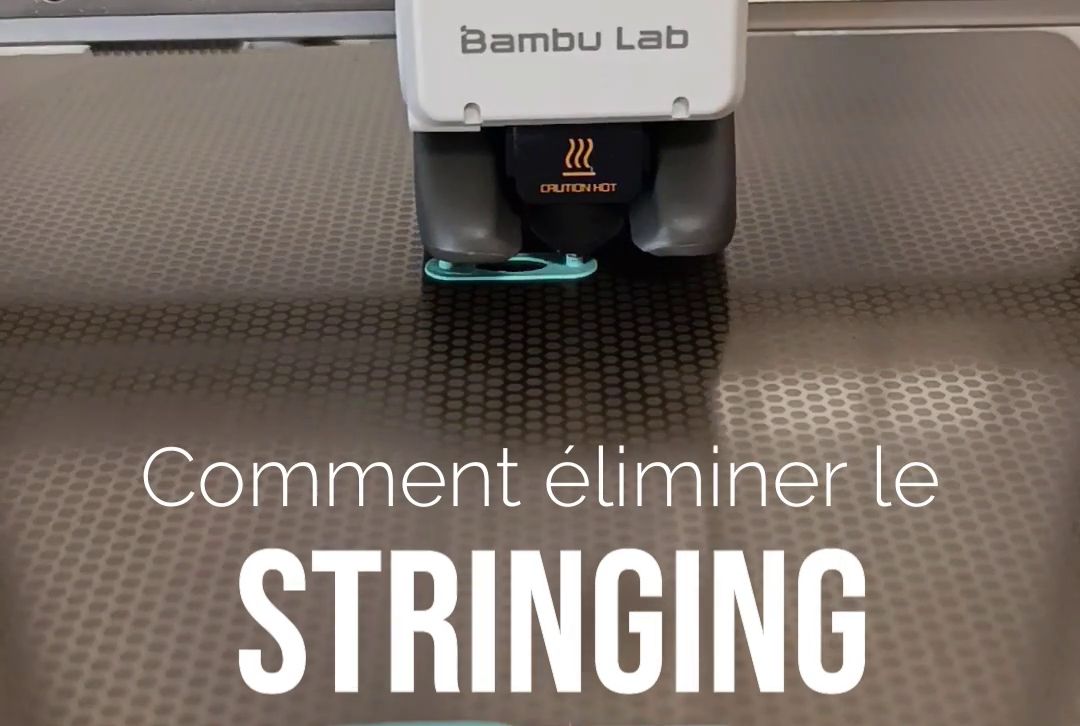
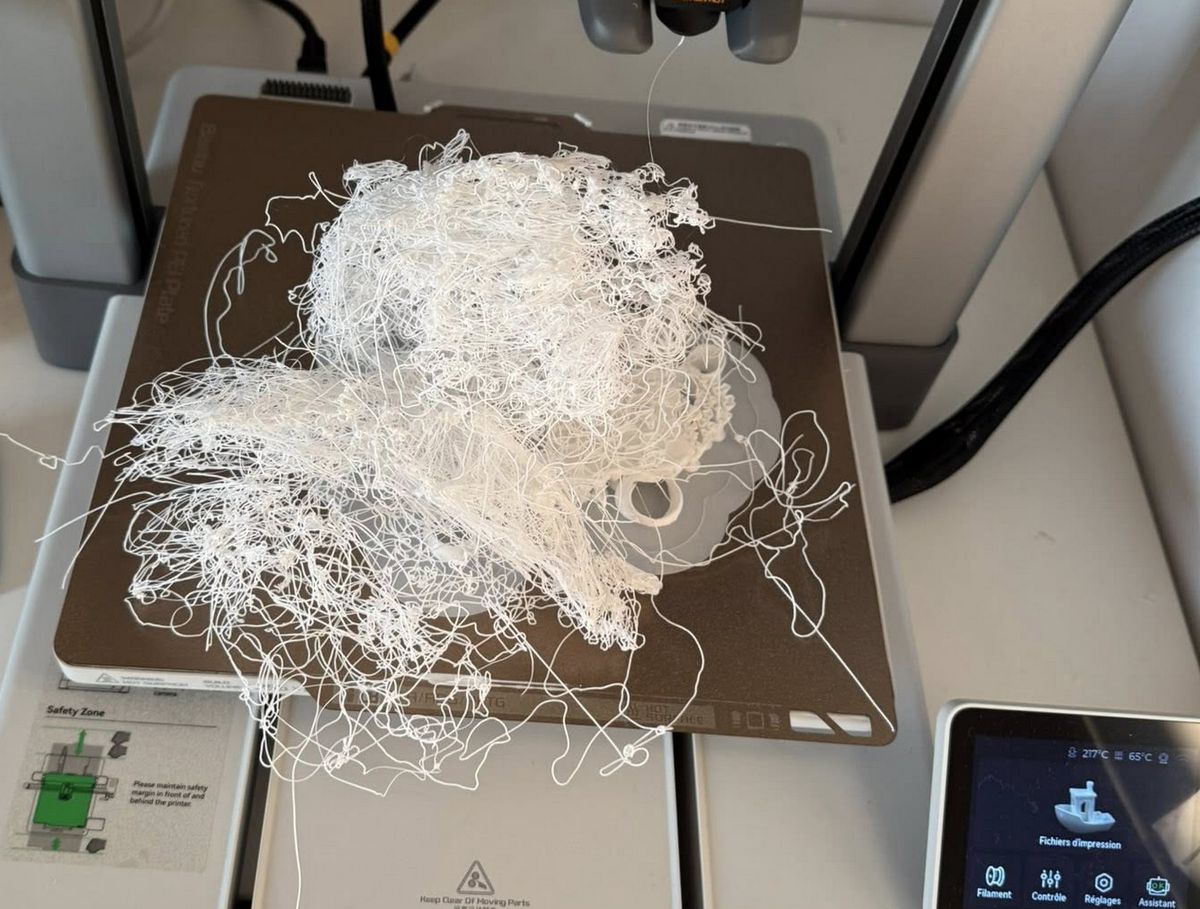
Finished a print only to find thin plastic cobwebs stretched between different parts of your model? That's the infamous "stringing," a common but frustrating printing problem. The good news: it's easy to fix by adjusting a few settings on your 3D printer.
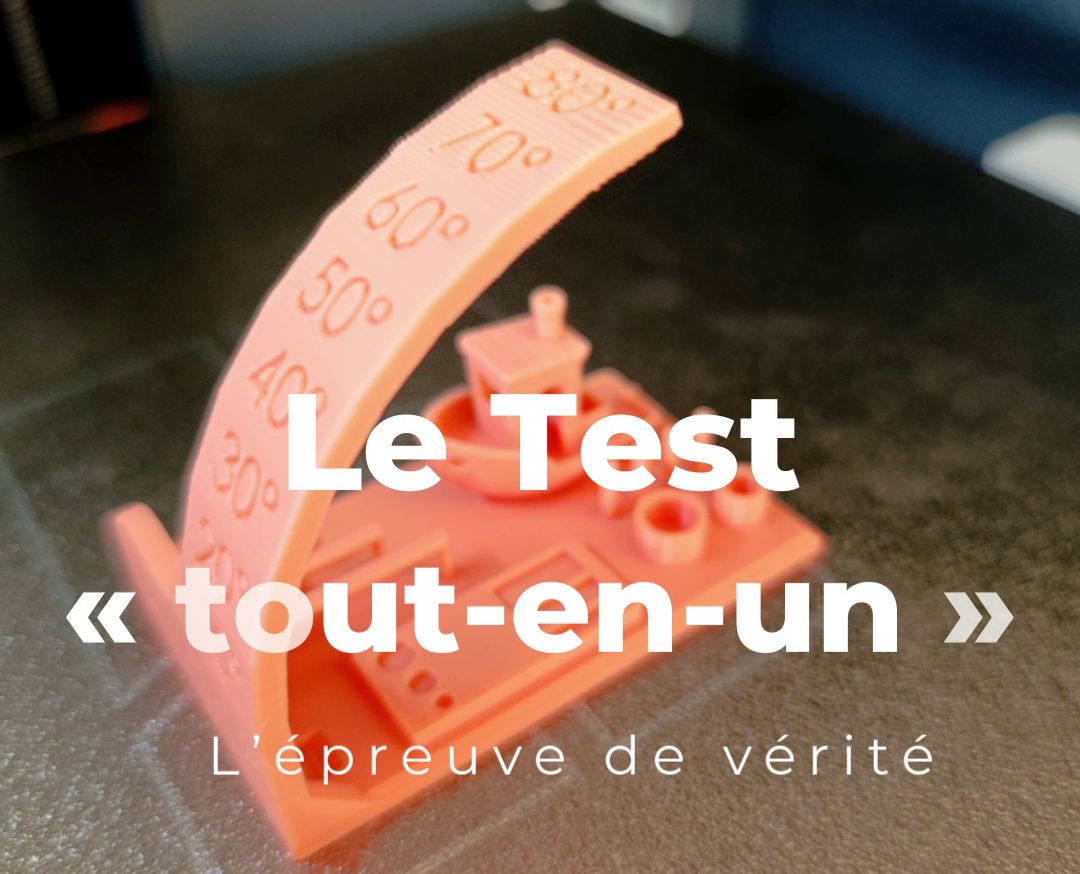
First, to diagnose the issue, you need to test. A good test print will help you identify the root cause of stringing. Here's a test file you can download and print: @LeMondedu3D
What is stringing and why does it happen?

"Stringing" (or "oozing") occurs when thin trails of melted filament escape from the nozzle as the print head moves from one area to another. This happens because a small amount of plastic oozes out instead of staying inside the nozzle.
The good news: this problem is almost never caused by a faulty part—it's almost always due to suboptimal settings.
Solutions to eliminate stringing
To fix stringing, you need to adjust several key parameters in your slicing software.
1. Retraction
This is the most important setting. Retraction tells the extruder motor to pull the filament back a certain distance before each print head move.
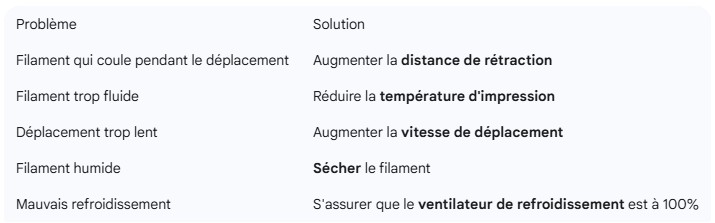
- Retraction distance: Increase the retraction distance in small steps (for example, 0.5 mm at a time) until the problem is solved.
- Retraction speed: Increase the speed so the filament pulls back faster.
2. Print temperature
If your nozzle temperature is too high, the filament becomes too fluid and flows more easily.
- Temperature test: Lower the temperature by 5 °C and try again. A "temp tower" (temperature tower) is a test print that helps you find the ideal temperature for your filament.
3. Travel speed
The faster the print head moves from one point to another, the less time filament has to ooze.
- Travel speed: Increase the travel speed in your settings. A speed of 150 to 200 mm/s is often recommended for most printers.
4. Part cooling
Good cooling solidifies the filament quickly after it's deposited, preventing it from forming strings.
- Fan check: Make sure your part cooling fan runs at 100% during printing.
5. Filament condition
Filament that has absorbed moisture from the air is more prone to stringing.
- Drying: If your filament isn't brand new, try drying it in a filament drying box or in a low-temperature oven (around 50 °C).
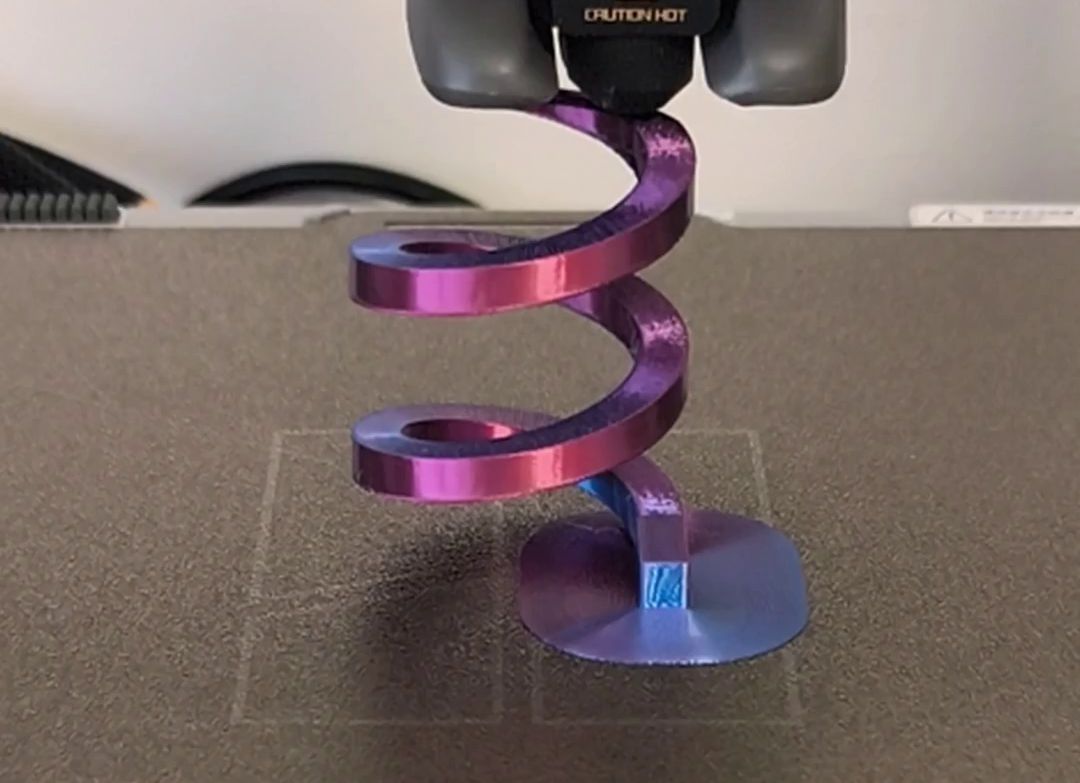
In conclusion, stringing is a calibration issue, not a failure. With a little patience and adjustment, you'll produce flawless prints with no unwanted filament strings.